Posts

How to read azure storage and write to Azure SQL using Databricks

Image
Databricks project originally initiated by UC Berkeley and then latter known as Apache Spark. It provides all analytics and Big Data processing service. Currently it is part of Microsoft and named as Microsoft Azure Databricks .  We are using Databricks in Azure platform as  a single platform for Big Data processing and Machine Learning. It provides data science and data engineering teams with a fast, easy and collaborative Spark-based platform on Azure.  In this post, I'll walk through how you can connect with Azure storage, read your files and write them in your Azure SQL. Basic Data Engineering steps. Implementing machine learning inelegancy or drill down level data aggregation is out of scope. Let's start by creating Databricks first. To create Databricks, search Azure Databricks in your Azure portal and click on it to create. Once created, you can see this at your Azure portal. Click on it to go to this resource home page. At the home page, click on Launch Wo...

Azure Synapse Analytics(workspace preview) creation step-by-step

Image
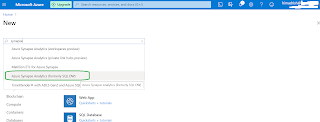
In this post, I'll walk through creation of Azure Synapse Analytics(workspace preview) through Azure UI. And here is my earlier post link where I walked through the Azure Synapse Analytics(formerly SQL DW) . Okay, lets start on the creation process. Search 'Azure Synapse' on creation search box and then click on Azure Synapse Analytics(workspace preview) . And then follow the steps and click on create. Once the Synapse Analytics gets created, go to the resource and land on the home overview page. This is looks like below. Overview page holds all major information. Note, SQL Server and default DB creation is part of the creation process. So, you will have the information about DB server and other details. Click on Open under 'Open Synapse Studio' box land you on the Synapse workspace.  This could be pretty familiar t you if you worked with Azure Data Factory. On the extreme left navigation, you have  Home ,  DB, Pipeline ,  Monitoring  etc icon which are same as...

Azure Synapse creation step-by-step process

Image
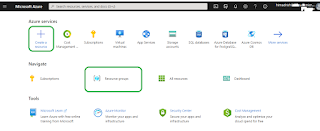
Microsoft announced recently their new horse Azure Synapse . This is analytics service integrated with Data Warehousing and Big data analytics features. Formerly, it was known as SQL Data Warehouse , and now, Microsoft integrated with limitless services on it and renamed as  Azure Synapse . Azure Synapse having platform Gen2 which help it to perform much more faster and running on Azure Cloud actually allow this to integrate with unlimited Azure features. In this post, I'm going to walkthrough very simple way to create the in Cloud environment using Azure UI. However, there are many things need to integrate configure which are not scope of this post. I'll post in future for additional configuration of   Azure Synapse. Let's start and create  Azure Synapse. To create,  go to the Azure portal, login there and click  on 'Create a new resource' under Azure Services. Search there writing ' Azure Synapse '. While in the search box, it appears, click on it.

Notes on Event Handlers in SharePoint Add-Ins

In SharePoint 2010 world, most of the custom SharePoint application used EventReceiver . This guy played a vital role during that timeframe. EventReceiver is very simple. You can consider this as based on your trigger event, what action you want to execute – this could be a validation, schema change, item entry, workflow initiation, or even communicate with other application. In respect to SharePoint Online, we call this as RemoteEventReceiver(RER) . Same utilization through different channel. SharePoint Online utilize different DLLs, interface, and the implementation through add-ins. In this post, I walk through some notes about RemoteEventReceiver(RER) . Provider-hosted Add-ins Custom code can handle three categories of events in provider-hosted add-ins: ·        List events, such as the adding or deleting of a list on a website. ·        List item events, such as the editing of an item in a list. ·  ...

Azure Environment for Development and Production

Image
A very simple and self declarative way to create environment development and production environment in Azure. You applications/apps should able to connect with other apps on the same Azure environment as well.  

Upcoming top five O365/SharePoint features in my opinion

Here are top five Office 365/SharePoint features in my opinion. A few already released and few are on the way and will be rolled out very soon. Enable the communication site experience on classic team sites - Communication site is being used for sharing information like corporate news, reports, announcements, townhall news and other information in a visually compelling format. Microsoft now allowing classic team site can have this feature. This is done by a very easy tweaking thing and just running a PowerShell cmdlet( Enable-SPOCommSite -SiteUrl <URL of target site> ), turn your modern communication site features to your classic team sites.

Azure resource and service creation using Azure UI - part1

Image
This post is all about how to create some basis services in Azure like starting from resource group, DB, storage etc. Entire post is self explanatory and step-by-step process in pictorial way. To start with, login your Azure account at http://portal.azure.com / and then follow the steps below. First thing is to create the  Resource Group . Whatever resource I'm going to create here should be under one  Resource Group .  Click on Resource group icon or  click on ' Create a resource ' and then search on ' Resource Group' landed you Resource Group creation page. next, select your subscription from dropdown list and enter the name of the  Resource Group ( here it is   POC-WS-TO-ADF ) which is going to be created. Once creation completes, Azure shows the information and allow to go the resource group home page. Now, I wanna like to create on SQL DB resource. Following step-1 process i.e. clicking on ' Create a resource ' and then search SQL DB or clicking on S...

Power Apps Tips

Empower your team, build high productivity Business Apps without doing lots of hardcoding – Power Apps is the current trend -   Platform as Service on M 365  Platform. Microsoft Power Apps service url to know better about it https://powerapps.microsoft.com/en-us/ In today’s post, I’ll walkthrough couple of tips, how-to in Power Apps world. Let’s start. How to put text color in Power Apps form – Label control do have a property called Color . Placing the color value like ColorValue(“Color.Aqua”) make the text color aqua in the form. How can we allow TAB control works on the PowerApps form – Control do have a property called ‘TabIndex’ . This contains number and based on the sequence number, keyboard TAB control move forward one after another.  How to move all controls in the PowerApps form at the same time – Place all your controls inside a Form, and move the form or resize the form. Using Multiline property of the Mode property of the Textbox, you can allow ...

How to setup custom notification in Azure DevOps

Image
In this post, I'm going to walk through how you can utilize Azure Notification services in most optimum way. By setting your custom notification, you can actually manage your team, the flow of the task/work executing, and you will be top of every important change which is happening in your DevOps board. Let's start by visiting your Azure DevOps portal and then go to Project Settings and then Notification under General . Here, you will found all pre-built notification. All useful and most common pre-built you can find there like ' Build completed ',  ' Deployment Pending ', ' Release Approval ', ' Deployment Completed ' etc.

Azure DevOps error message - Iteration cannot be used to create sprint.

Image
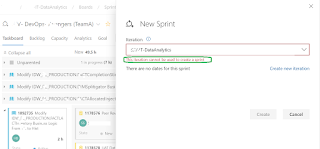
This is one common error message I have identified in Azure DevOps platform. I was supposed to create a new sprint session under a new team/project. While trying to create the sprint, Azure DevOps threw me the below error information saying " This iteration cannot be used to create Sprint ".

Power BI report from Azure DevOps Board

Image
Today, will discuss on how to make connection from Power BI to Azure DevOps(services) and how you can start preparing the basis reports in Power BI. Here is my favorite Microsoft Link - https://docs.microsoft.com/en-us/azure/devops/report/powerbi/create-quick-report?view=azure-devops Let’s start and these are very simple steps I’m going to mentioned here.  Open Power BI >> Click on Get data >> Search DevOps Or you can click on ‘ Online Services ’ >> Choose Azure DevOps(Boards Only) .

Azure DevOps error - TFS.WebApi.Exception: An undefined error occurred

Image
This error raised during my work with Azure DevOps board. After creating one feature, I was busy to create related couple of user stories under that feature and suddenly  I face this error. Initially, a few user stories I was able to create and linked under the feature, and then I fill up the story form, linked this with parent feature and click on submit. Popup appeared and throwing the below error: Here the error information in text format.